The equipment
- Large screen TV
- Logitech Rally pan-tilt-zoom (PTZ) webcam
- Logitech puck microphone
Connecting to the large screen TV
- On the TV remote press Settings > Recommended > Office AV, this selects the Apple TV as input
- Select Screen Mirroring (see pic) from the top right corner on your Mac
- Select Office 1 and enter the 4 digit pin if shown on the TV screen
- You should now see your Mac desktop on the TV
Connecting the camera and microphone
- Plug the cable marked Mic on the centre of the desk to your Mac
Setup Zoom
- Open Zoom > Preferences > Video
- Select the Logi Rally camera
- Enable HD if not enabled
- Select Preferences > Audio
- Select the Logi Rally Microphone
- Adjust the audio settings if needed and close the preferences window
Controlling the PTZ camera
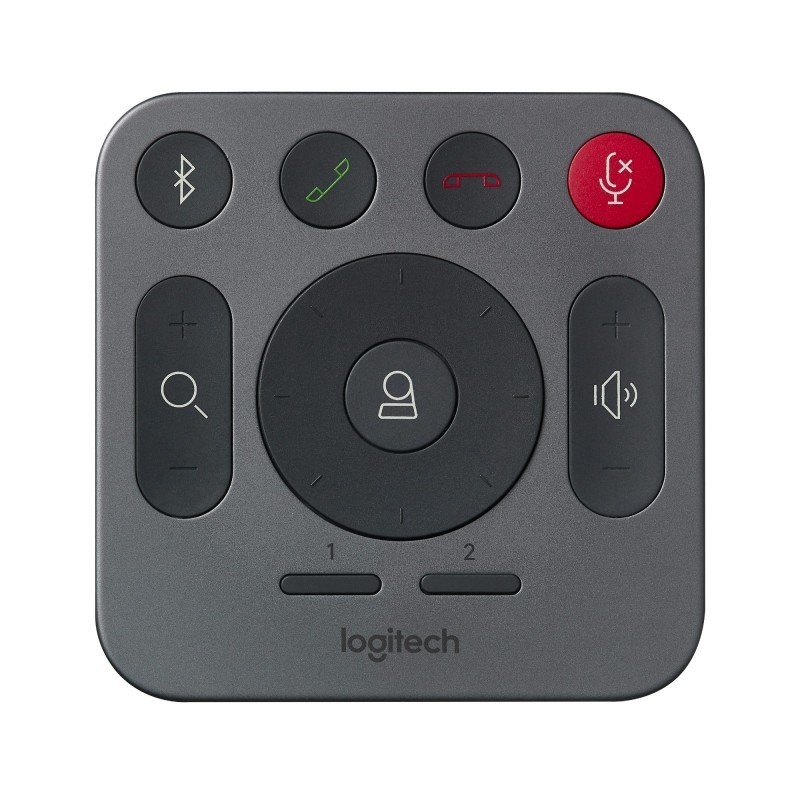
- Use the remote control centre dial to move the camera
- Use the other controls to control volume, zoom, mute the microphone and more
Only one of the microphones works
Comments
0 comments
Please sign in to leave a comment.