|
This article assumes: You've done the initial setup for Okta. If you haven't see the Okta Activation Guide. You still have Okta on the older device. If you no longer have access to Okta or cannot sign in, contact IT. |
Install Okta Verify and Add an account
- Go to your mobile device, download the app from the store and install it.
- Open the app and follow the instructions.
- Tap Add Account.
- Choose the type of account to add. Tap Organization.
- Once you have the QR code, see instructions below, tap Yes, ready to scan
- Scan the QR code
Generating the QR Code
- From a browser, sign at minutemedia.okta.com. It is possible to use a code instead of push notifications.
- Click the arrow next to your name and go to Settings.
- If the Edit Profile button appears, click it and enter your password if prompted.
- Scroll down to Extra Verification.
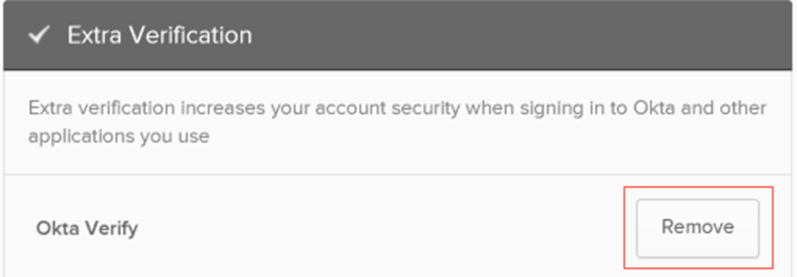
- In the Okta Verify row, click Remove.
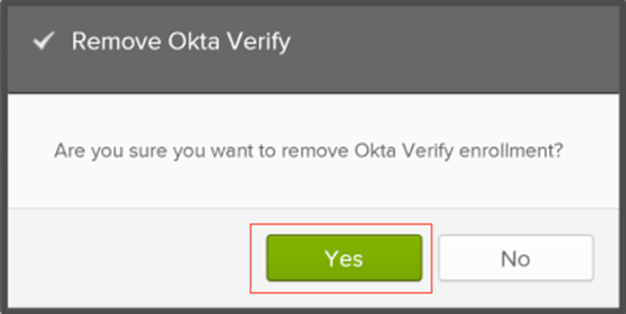
- When prompted to confirm removal, click Yes.
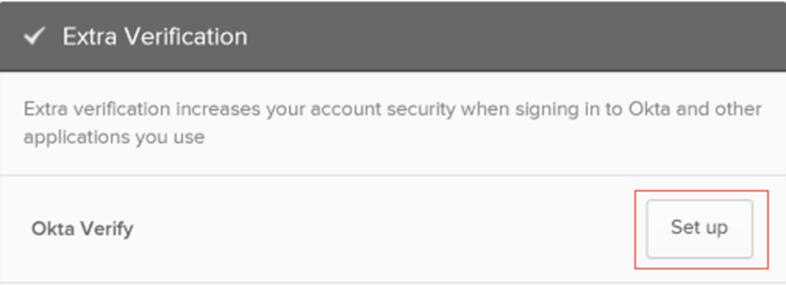
Follow the instructions on the screen. You might have to confirm your identity with a security method. - In the Okta Verify row, click Set up.
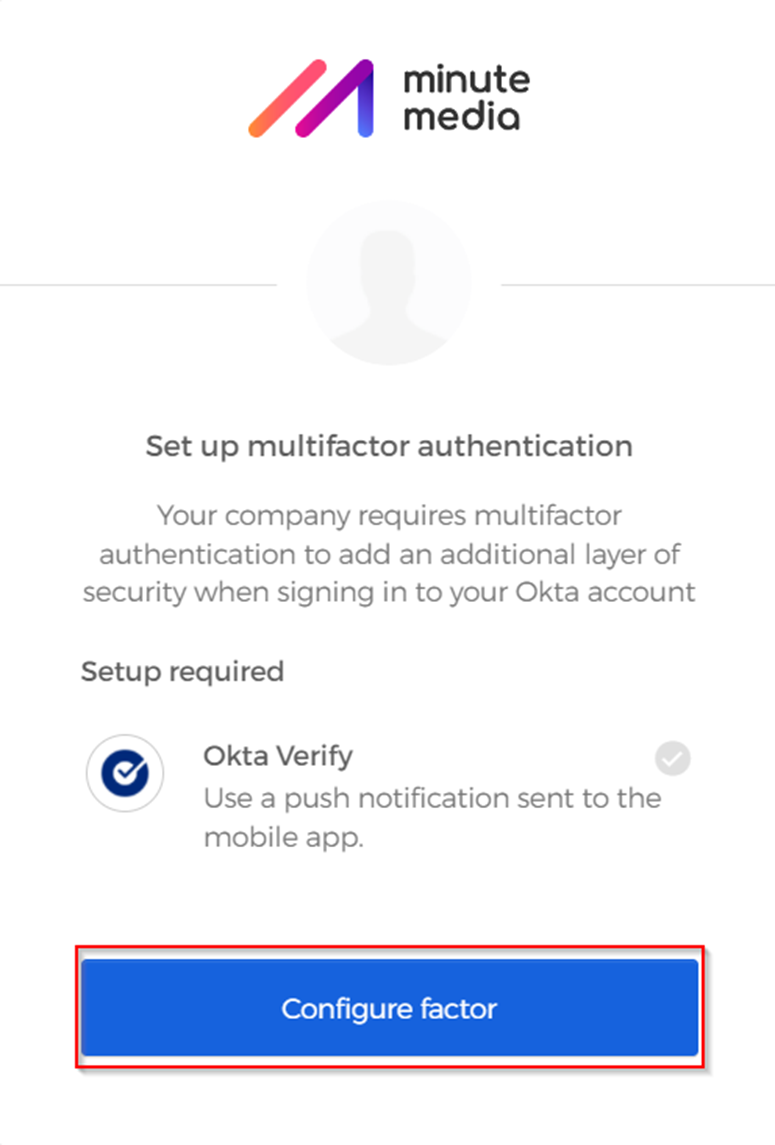
- Click Configure Factor to add the Okta Verify account.
- Select your device type and click Next.
- A QR code appears on the screen.
Please contact IT if you encounter any problems
Comments
0 comments
Please sign in to leave a comment.