Target audience: User with a new and unused company provided Apple Mac computer
Welcome to your new Mac. It is pre-configured and ready for you login and use. After you do, several apps will be installed automatically including Google Chrome, Zoom, Slack and more. Please follow the instructions below to fully setup your new Mac computer.
Requirements
- Your Minute Media username and password
- Your phone
- A good WiFi connection
Installation
- Switch the Mac on by pressing the power button
- When asked, select your preferred language and country
- Next you will be offered the Accessibility screen which lets you customise your Mac if you are physically disabled. Most users can press Not Now toskip this step.
- Connecting to WiFi is essential for the setup so make sure you have a good signal. Select the WiFi network and enter the password for it then press Continue.
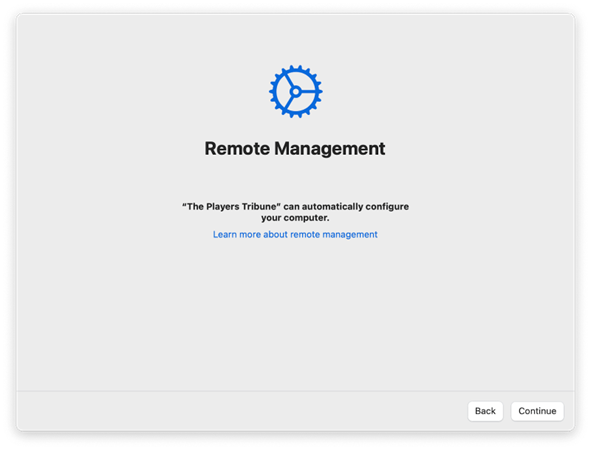
- After a short delay you should see a window informing you that the computer has been recognised and is managed by Minute Media/The Players Tribune. Press Continue if you see the screen below. If not, please go back and make sure you entered the WiFi password correctly. The WiFi indicator at the top right of the screen should show full signal.
-
Do not continue if you do not see this screen - instead contact itsupport@minutemedia.com
-
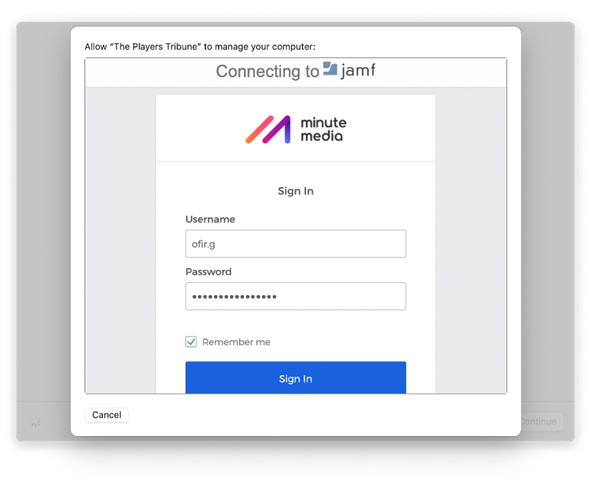
Press Continue in the screen above and then enter your Minute Media user name (without the @minutemedia.com part) and password and press Sign in
-
Press Send Push
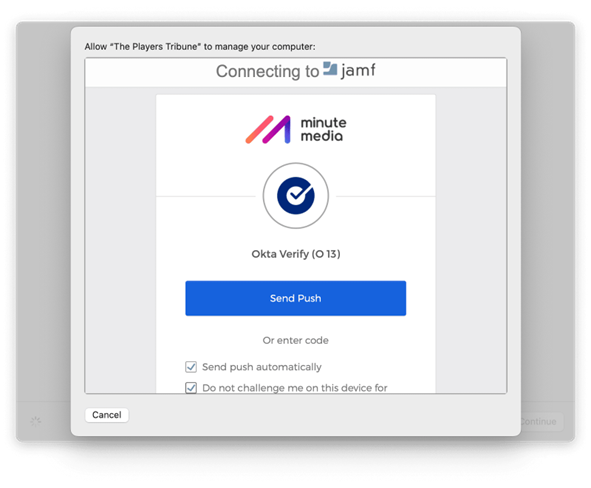
- Check your phone and approve the login.
-
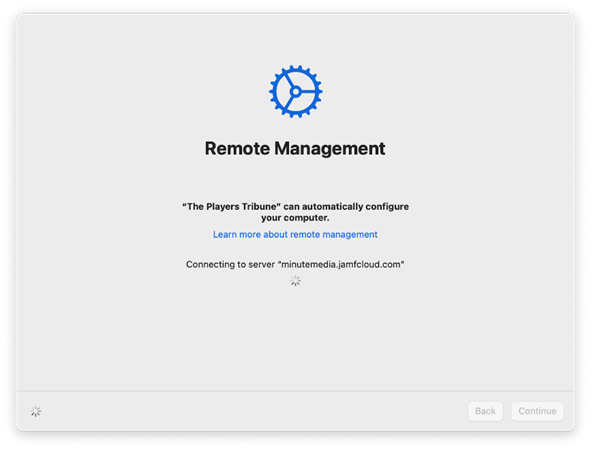
You should now see the Remote Management window while the computer is being setup. This can take a minute and the screen may go black which is normal.
-
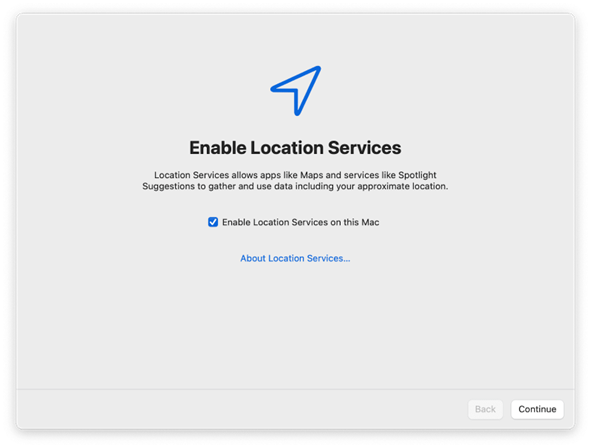
When prompted please Enable Location Services. This is not used by Minute Media to track your location! Instead it's used by Apple to make sure your computer clock is synchronised.
-
Next you will need to log in again with the same Okta user name (without the @minutemedia.com part) and password you used before.
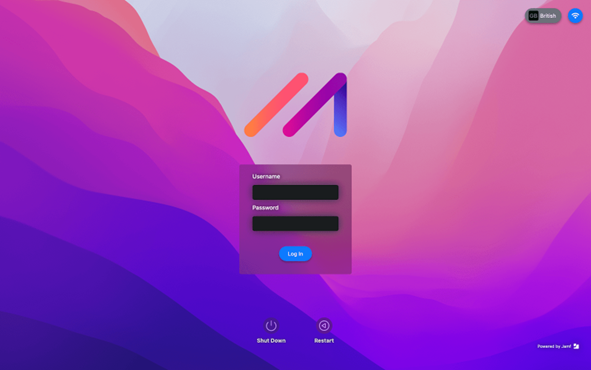
- Authorise the login on your phone.
- Your account will be created and you will be given an opportunity to setup accessibility features if required, otherwise select Not Now to continue.
- Proceed through the remaining Apple screens to setup Siri (voice recognition) and TouchID.
-
You have completed the setup and your Mac will now download a few additional appswhich will take a few minutes. Once it has you should see them appear in the Dock at the bottom of the screen.
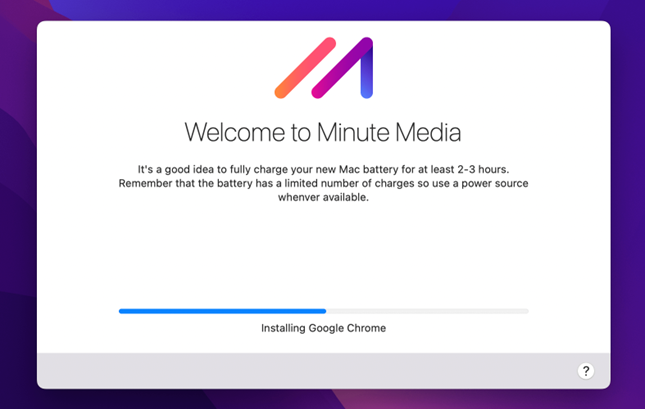
Click the Self Service app to get started. You can read more about the setup here
Comments
0 comments
Please sign in to leave a comment.